---
title: "Quick Start | Speedscale Docs"
description: "Install Speedscale with API key and operator setup, using eBPF collection by default and goproxy sidecars when eBPF is not available."
canonical: "https://docs.speedscale.com/quick-start/"
---
[Documentation index](https://docs.speedscale.com/quick-start/llms.txt) | [Markdown](https://docs.speedscale.com/quick-start/index.md) | [Canonical page](https://docs.speedscale.com/quick-start/)
# Quick Start
Local installation
For local development and testing without a cloud cluster, use **proxymock** to run a local mock server and generate tests from your traffic. Follow [Install proxymock CLI](https://docs.speedscale.com/proxymock/getting-started/installation/) and the [proxymock CLI quickstart](https://docs.speedscale.com/proxymock/getting-started/quickstart/quickstart-cli/). For help choosing between proxymock and speedctl, see [Command-line tools](https://docs.speedscale.com/getting-started/command-line-tools/).
Security options
* **Local-first:** proxymock keeps recording local by default for desktop workflows. See [Data and Privacy](https://docs.speedscale.com/proxymock/how-it-works/data_and_privacy/).
* **Enterprise isolation:** use [Bring Your Own Cloud (BYOC)](https://docs.speedscale.com/byoc/) when data residency and cloud boundary control are required.
* **Sensitive data controls:** enable [DLP](https://docs.speedscale.com/guides/dlp/) so sensitive fields are redacted before data leaves your network.
This guide walks through installing Speedscale into a new environment. After completing these steps the Speedscale Operator will be installed in your cluster and you should continue on to the [tutorial](https://docs.speedscale.com/tutorial/) to record, replay and view results for a demo application.
Sidecar capture is deprecated
For Kubernetes traffic collection, use the [eBPF collector](https://docs.speedscale.com/reference/ebpf-traffic-collection/). Use goproxy sidecars only for an existing deployment or when your environment does not meet the eBPF requirements.
Speedscale is tested with apps hosted on the local desktop all the way up to high scale enterprise Kubernetes clusters. If this is your first time working with Speedscale, it's easiest to just run on your local desktop and record traffic from a local process. Keep in mind that it is very common to record traffic in one environment (like a production Kubernetes cluster) and replay it somewhere else (like a local mock server).
## Install with your coding agent (recommended)
This platform install deliberately installs **both speedctl and proxymock**. For proxymock alone without cluster setup, use the [proxymock-only agent install](https://docs.speedscale.com/proxymock/getting-started/installation/#install-with-ai-agent).
Let your coding agent (Claude Code, Cursor, Codex, Gemini CLI, Kiro, or any assistant that can read a URL and run commands) do the whole install. Paste this into the chat:
```text
Install Speedscale for me. First fetch the agent skill at
https://raw.githubusercontent.com/speedscale/skills/main/skills/install-speedscale/SKILL.md
and the references/ and scripts/ files it links to (same base URL), save them
under your skills directory, then follow the skill. Ask me before touching a
Kubernetes cluster.
```
The [install-speedscale skill](https://github.com/speedscale/skills) follows the same steps as the manual install below. It installs `speedctl` and `proxymock`, adds Helm and kubectl if they are missing, sets up your API key without ever printing it, and picks Helm values for your platform (EKS, GKE, AKS, minikube, kind, OpenShift). Then it verifies the operator and, only for the agent you select, offers to add the proxymock MCP server and bundled skills after previewing the paths. The agent announces every step that changes something before running it. It stops for you at browser sign-in and before touching a cluster whose name looks like production. With no cluster available, it installs just the CLIs.
Already have proxymock? `proxymock mcp install --client claude-code --skills` offers MCP and bundled skills for that selected client, preferring project scope. Add `--dry-run` to preview paths. You can also add it as a Claude Code plugin with `/plugin marketplace add speedscale/skills` then `/plugin install speedscale@speedscale-skills`, as a Codex plugin with `codex plugin marketplace add speedscale/skills` then `codex plugin add speedscale@speedscale-skills`, or add it to other agents with `npx skills add speedscale/skills`.
See [Agent skills](https://docs.speedscale.com/proxymock/agent-skills/) for the other skills.
## Prefer to install manually?
The rest of this guide walks through the same install by hand:
1. Retrieve your API Key
2. Install speedctl CLI (optional for Helm installation)
3. Install Operator (if required)
4. Verify Installation
5. Capture and replay traffic against a demo app
## Retrieve your API Key
Cluster API key
For Kubernetes deployments, use a service account API key from [Tenant Settings](https://app.speedscale.com/tenant) instead of a personal key, so cluster access is not tied to an employee's account. Ask a tenant admin to create one if needed.
Copy the service account API key and use it as `apiKey` in the Helm commands below, or paste it when prompted by `speedctl install`.
## Install speedctl CLI (optional)
These instructions install **speedctl** for platform setup and cloud resource automation. For the proxymock record/mock/replay workflow, follow [Install proxymock CLI](https://docs.speedscale.com/proxymock/getting-started/installation/).
**MacOS**
Install speedctl on macOS with [Homebrew](https://brew.sh/):
```shell
brew install speedscale/tap/speedctl
```
Or via the install script:
```shell
sh -c "$(curl -Lfs https://downloads.speedscale.com/speedctl/install)"
```
Note
You can inspect the install script to see what it does. Root permission is _not_ required to execute this script.
Install a specific version by passing it to the install script:
```shell
sh -c "$(curl -Lfs https://downloads.speedscale.com/speedctl/install)" -s v2.3.86
```
tip
To install non interactively (like in CI/CD) set the `SPEEDSCALE_API_KEY` environment variable to your [API key](https://docs.speedscale.com/quick-start/#retrieve-your-api-key)
Optionally skip the install script and install manually:
```shell
# Download speedctl binary on your machine
curl "https://downloads.speedscale.com/speedctl/speedctl-darwin-$(case $(uname -m) in x86_64) echo 'amd64';; arm | arm64 | aarch64) echo 'arm64';; esac)" -o speedctl
# Create speedscale directory and move the binary to the directory
mkdir ~/.speedscale
mv ./speedctl ~/.speedscale
# Give execute permission to the binary
chmod +x ~/.speedscale/speedctl
```
Reminder
Don't forget to add `speedctl` to your `$PATH` variable in your shell's rcfile:
```shell
# substitute your shell's rcfile
echo "export PATH=\$PATH:$HOME/.speedscale" >> ~/.zshrc
```
**Linux**
Install speedctl on Linux with the install script:
```shell
sh -c "$(curl -Lfs https://downloads.speedscale.com/speedctl/install)"
```
Note
You can inspect the install script to see what it does. Root permission is _not_ required to execute this script.
Install a specific version by passing it to the install script:
```shell
sh -c "$(curl -Lfs https://downloads.speedscale.com/speedctl/install)" -s v2.3.86
```
tip
To install non interactively (like in CI/CD) set the `SPEEDSCALE_API_KEY` environment variable to your [API key](https://docs.speedscale.com/quick-start/#retrieve-your-api-key)
Optionally skip the install script and install manually:
```shell
# Download speedctl binary on your machine
curl "https://downloads.speedscale.com/speedctl/speedctl-linux-$(case $(uname -m) in x86_64) echo 'amd64';; arm | arm64 | aarch64) echo 'arm64';; esac)" -o speedctl
# Create speedscale directory and move the binary to the directory
mkdir ~/.speedscale
mv ./speedctl ~/.speedscale
# Give execute permission to the binary
chmod +x ~/.speedscale/speedctl
```
Reminder
Don't forget to add `speedctl` to your `$PATH` variable in your shell's rcfile:
```shell
# substitute your shell's rcfile
echo "export PATH=\$PATH:$HOME/.speedscale" >> ~/.zshrc
```
**Windows**
Open PowerShell and create a Speedscale directory.
```text
mkdir -f $env:userprofile\.speedscale
```
Download `speedctl` into the Speedscale directory.
```text
curl.exe -L "https://downloads.speedscale.com/speedctl/speedctl.exe" -o $env:userprofile\.speedscale\speedctl.exe
```
If this is your first time using `speedctl` you may need to add the Speedscale directory to your Path environment variable so it is accessible without knowing the full path.
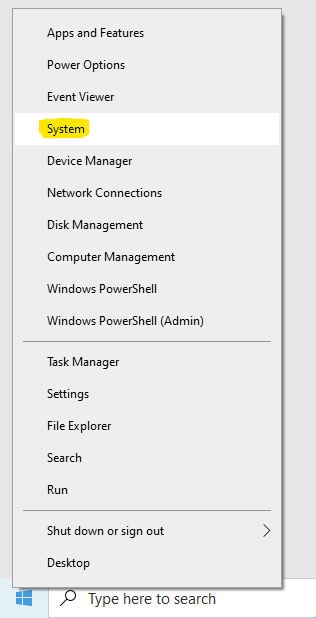
To add the Speedscale directory to your path, right click on the Windows button and click **System**.
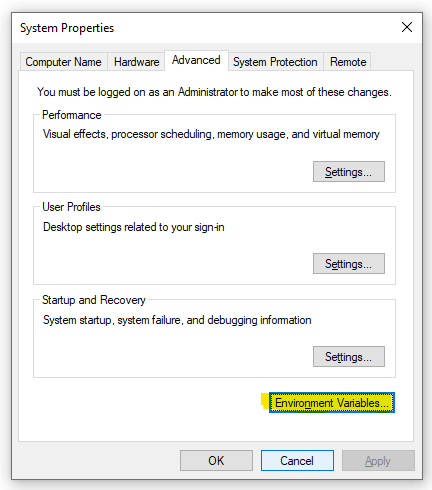
Click **Advanced system settings** on the right.

Click **Environment Variables**.
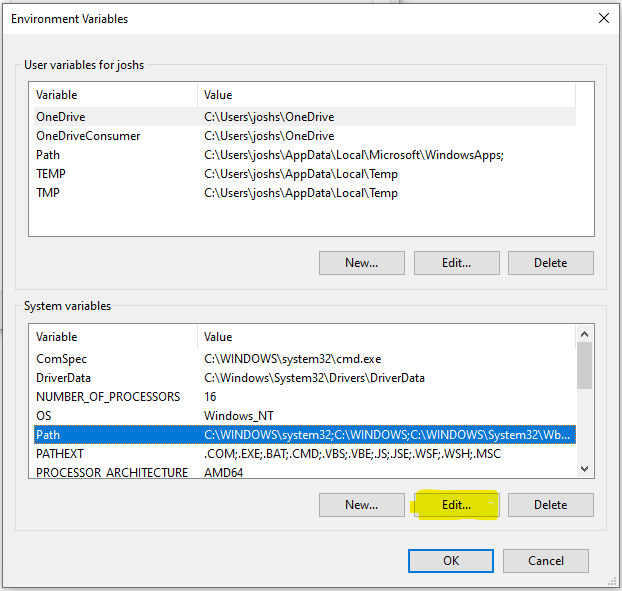
Under **System variables** select **Path** and click **Edit**.
Create a **New** entry in the list with the Speedscale directory. If you are unsure of the exact path run this command from PowerShell.
```text
echo $env:userprofile\.speedscale
```
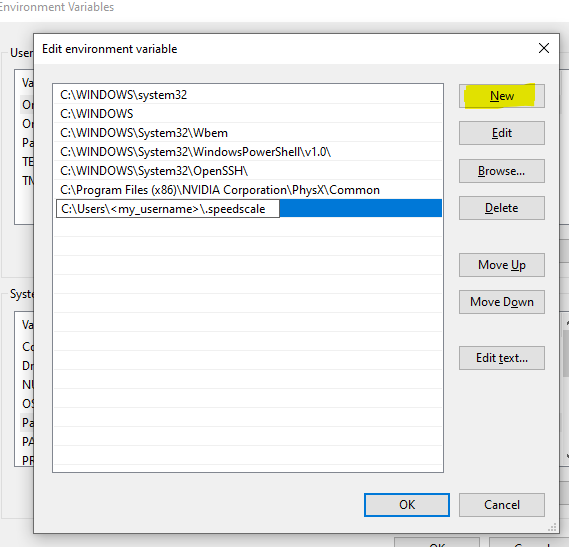
Click **OK** and restart PowerShell.
## Install Speedscale Operator (optional)
If you are running Speedscale on your local desktop, you should continue directly to the [tutorial](https://docs.speedscale.com/tutorial/). The rest of this document is focused on installing a Kubernetes-based demo.
If you are using a common Kubernetes distribution (EKS, GKE, minikube, etc) then you can install using these instructions. If you are not running in Kubernetes, or are running with a more specialized enterprise distribution please select environment-specific [instructions](https://docs.speedscale.com/getting-started/installation/install/) in this section.
**Helm**
Make sure you have [Helm 3](https://helm.sh/docs/intro/install/) installed. Then,
```text
helm repo add speedscale https://speedscale.github.io/operator-helm/
helm repo update
helm install speedscale-operator speedscale/speedscale-operator \
-n speedscale \
--create-namespace \
--set apiKey= \
--set clusterName=
```
Navigate to the [Helm repository](https://github.com/speedscale/operator-helm/blob/main/README.md) for all configuration options available for the Helm chart.
**speedctl (Mac/Linux)**
Run `speedctl install`, choose "Kubernetes" and follow the prompts.
The install wizard will walk you through installing the [Speedscale Kubernetes Operator](https://docs.speedscale.com/getting-started/installation/install/kubernetes-operator/).
Recommended next step: enable the [eBPF collector](https://docs.speedscale.com/reference/ebpf-traffic-collection/) to capture traffic in Kubernetes without proxies or app changes. If your environment or workload cannot use eBPF, fall back to the [Sidecar installation](https://docs.speedscale.com/getting-started/installation/sidecar/install/).
### (Optional) Adding Image Pull Secrets
If you need custom image pull secrets (for example, if you're re-hosting Speedscale images in a dedicated registry), you may provide one or more secret names with the `--imgpullsecrets` argument, and the secrets will be attached to the service account.
```text
speedctl install --imgpullsecrets my-secret1,my-secret2p
```
**speedctl (Windows)**
If using Kubernetes run `speedctl install`, choose "Kubernetes" and follow the prompts. The install wizard will walk you through installing the [Speedscale Kubernetes Operator](https://docs.speedscale.com/getting-started/installation/install/kubernetes-operator/).
Recommended next step: enable the [eBPF collector](https://docs.speedscale.com/reference/ebpf-traffic-collection/) to capture traffic in Kubernetes. If eBPF is not suitable for your workload or kernel, use the [Sidecar installation](https://docs.speedscale.com/getting-started/installation/sidecar/install/) instead.
Speedscale can also be used with [Docker](https://docs.speedscale.com/getting-started/installation/install/docker/) and [locally with proxymock](https://docs.speedscale.com/proxymock/getting-started/quickstart/quickstart-cli/).
**ArgoCD**
Use the following ArgoCD manifest as an example. Make sure to use the latest `targetRevision` as shown on the [Helm repository](https://github.com/speedscale/operator-helm/blob/main/README.md).
```text
project: default
source:
repoURL: 'https://speedscale.github.io/operator-helm/'
targetRevision:
helm:
parameters:
- name: apiKeySecret
value: speedscale-apikey
values: |-
apiKeySecret: speedscale-apikey
clusterName:
chart: speedscale-operator
destination:
namespace: speedscale
name: in-cluster
syncPolicy:
automated: {}
syncOptions:
- CreateNamespace=true
```
**GitOps**
caution
Installing via `helm install` is preferred as different GitOps engines treat Helm charts differently and Helm guarantees an order of operations during the install.
You can generate manifests either via Helm or [speedctl CLI](https://docs.speedscale.com/getting-started/installation/install/cli/).
```text
helm template speedscale-operator speedscale/speedscale-operator \
-n speedscale \
--create-namespace \
--set apiKey= \
--set clusterName= > ./speedscale-operator.yaml
```
Then store `speedscale-operator.yaml` in git so it is deployed to your cluster.
### Verify Installation
Make sure the operator pods are running properly:
```text
kubectl -n speedscale get pods
```
Note: The Operator will start at least 2 pods (the operator itself and the Speedscale Forwarder) after it starts. On your cluster the ids of the pods will be different.
```text
NAME READY STATUS RESTARTS AGE
speedscale-forwarder-xxxxxxxxxx-xxxxx 1/1 Running 0 5s
speedscale-operator-xxxxxxxxxx-xxxxx 1/1 Running 0 15s
```
tip
If you have any issues installing, check out the [troubleshooting guide](https://docs.speedscale.com/getting-started/installation/install/troubleshooting/) or contact support on [slack](https://slack.speedscale.com/)
# Next Steps
For the proxymock CLI path, continue with [cluster capture and replay commands](https://docs.speedscale.com/proxymock/guides/cluster/). If proxymock is not installed yet, [install it first](https://docs.speedscale.com/proxymock/getting-started/installation/); the platform agent install already installs it.
At this point Speedscale is present in your cluster and you are now ready to target workloads for record and playback. If this is your first installation please continue using our multi-platform [tutorial](https://docs.speedscale.com/tutorial/) for a full walkthrough.
If you're already an expert you can click the `Add Service` button in the UI to target workloads for capture. Prefer enabling the [eBPF collector](https://docs.speedscale.com/reference/ebpf-traffic-collection/); if not possible, add sidecars [manually](https://docs.speedscale.com/getting-started/installation/sidecar/install/).