---
title: "Recommendations | Speedscale Docs"
description: "Discover how Speedscale identifies common patterns and provides actionable recommendations to enhance accuracy in your API testing and traffic replay efforts."
canonical: "https://docs.speedscale.com/guides/transformation/recommendations/"
---
[Documentation index](https://docs.speedscale.com/guides/llms.txt) | [Markdown](https://docs.speedscale.com/guides/transformation/recommendations/index.md) | [Canonical page](https://docs.speedscale.com/guides/transformation/recommendations/)
# Recommendations
Speedscale detects common patterns like OAuth handshakes and recommends remedies. This is a good place to start if you're trying to figure out how to increase your accuracy.
Every snapshot has one place to work with them: the **Prepare** tab. The count on the tab is how many items are waiting on you, and the **Overview** tab says the same thing with a button that takes you there.
## Working through recommendations in the Prepare tab
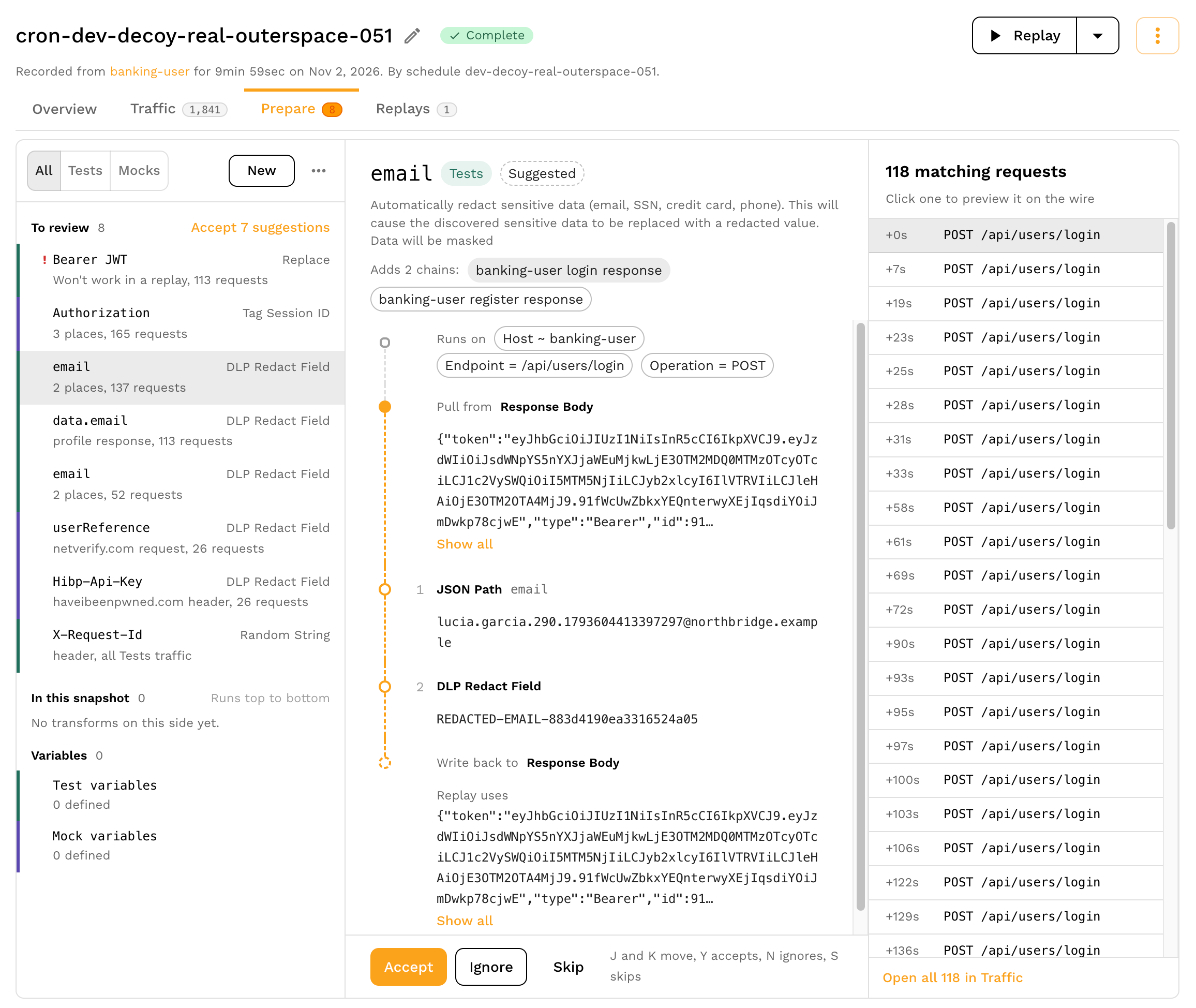
The Prepare tab has one list, grouped by state: **To review**, **In this snapshot**, **Ignored** and **Variables**. Expired credentials come first in **To review** because they block a replay, then suggestions ordered by how much traffic each one touches.
Selecting a suggestion opens it in the editor in the middle of the page, drawn with a dashed line to show that it is only proposed. The editor shows each step of the transform chain and what that step produces on a real request. The list on the right shows the requests the chain matches.
When the same fix applies in several places, such as one header on three hosts, it is one row that says how many places it covers. Select a place above the editor to see its chain and requests. **Accept** adds a chain for every place, and **Ignore** dismisses them all.
### Stepping through the queue
The buttons under the editor drive the review:
* **Accept** stages the suggestion's transform chain. It moves to **In this snapshot**, marked as unsaved.
* **Ignore** dismisses it. It moves to **Ignored**, where you can restore it, and stops counting as waiting.
* **Skip** leaves it undecided and moves to the next one.
Accepted suggestions and any other edits stay staged until you select **Save and reanalyze** in the bar at the bottom of the page, so clearing a long queue reanalyzes the snapshot once. **Discard** drops everything staged.
Keyboard shortcuts match proxymock's, so the two products behave the same way:
| Key | Action |
| --- | --- |
| `J` | Next |
| `K` | Previous |
| `Y` | Accept |
| `N` | Ignore |
| `S` | Skip |
### Seeing where a recommendation applies
Select any request in the list on the right to preview the chain on it. The values along the chain update, and **Replay uses** shows what the replay will send.
This is how you check that a fix generalizes. One example tells you the recommendation found _something_; stepping through several tells you it found the right thing everywhere.
**Open all in Traffic** shows every matching request in the Traffic tab.
### Sharing what you're looking at
The selected row lives in the URL, so a link to a snapshot's Prepare tab carries the item you were on. Paste it to a colleague and they land where you are.
## Findings about your application
Some recommendations are findings about the application under test, which you fix in your own code. These are on the **Traffic** tab under **Findings**, with search and filtering, and each one links to its related requests.
## After you apply
An accepted recommendation appears under **In this snapshot** as if you had entered it by hand. You are free to modify the transforms it created, and Speedscale will not reset them.
To back one out, select its chain, open its menu, and select **Delete transform**.
Recommendations are also used automatically by the upcoming plan-and-solve agent to increase accuracy in a snapshot. Usually they fix deterministic problems like 4xx HTTP errors.
tip
Recommendations are constantly being added to the list of known patterns. If you see one that is broadly applicable and not currently discovered please let us know in the [community Slack](https://slack.speedscale.com/).