---
title: "Import from Browser/HAR | Speedscale Docs"
description: "Import browser HAR files into Speedscale Cloud or local proxymock tests and mocks."
canonical: "https://docs.speedscale.com/guides/integrations/import/import-har/"
---
[Documentation index](https://docs.speedscale.com/guides/llms.txt) | [Markdown](https://docs.speedscale.com/guides/integrations/import/import-har/index.md) | [Canonical page](https://docs.speedscale.com/guides/integrations/import/import-har/)
# Import from Browser/HAR
This guide imports traffic from an [HTTP Archive](https://en.wikipedia.org/wiki/HAR_\(file_format\)) (HAR) file. Browsers and HTTP debugging tools can export this format with both requests and recorded responses.
We'll take the following steps:
1. Create a HAR file from browser traffic.
2. Import the traffic to Speedscale Cloud or proxymock.
3. Replay the requests or serve the responses as mocks.
## Create a HAR file from a browser
**Chrome**
Open [DevTools](https://developer.chrome.com/docs/devtools/open/) and select the **Network** tab.
Use your service in the browser to generate traffic.
Click [Export HAR](https://developer.chrome.com/docs/devtools/network/reference/#save-as-har) to export the traffic to a HAR file.
**Firefox**
Open [Developer Tools](https://firefox-source-docs.mozilla.org/devtools-user/) and select the **Network** tab.
Use your service in the browser to generate traffic.
Click the cog and choose [Save All as HAR](https://firefox-source-docs.mozilla.org/devtools-user/network_monitor/request_list/index.html#managing-har-data) to export the traffic to a HAR file.
## Import to Speedscale Cloud
Open [Services](https://app.speedscale.com/) in the Speedscale UI. Click **Add service**, then select **Build from HAR**.

The dialog asks for a snapshot name, traffic direction, HAR file, and service name. Use inbound direction to create tests and outbound direction to create dependency mocks. The service name identifies the imported traffic; the replay wizard asks for the real target URL later.
The equivalent CLI command is:
```bash
speedctl import har --name {SNAPSHOT_NAME} \
--service-name {SERVICE_NAME} --from recording.har
```
## Import to local proxymock files
The local importer does not require a Speedscale account. Each HAR entry becomes an inbound test, and its recorded response can also be served as an outbound mock:
```bash
proxymock import har recording.har --out ./har-rrpairs
# Replay requests against an application.
proxymock replay --in ./har-rrpairs --test-against http://localhost:8080
# Or serve the recorded responses as dependency mocks.
proxymock mock --in ./har-rrpairs
```
## View Snapshot
A cloud import creates a traffic snapshot that can be replayed in a cluster or from a local desktop. After import, the UI opens the snapshot.
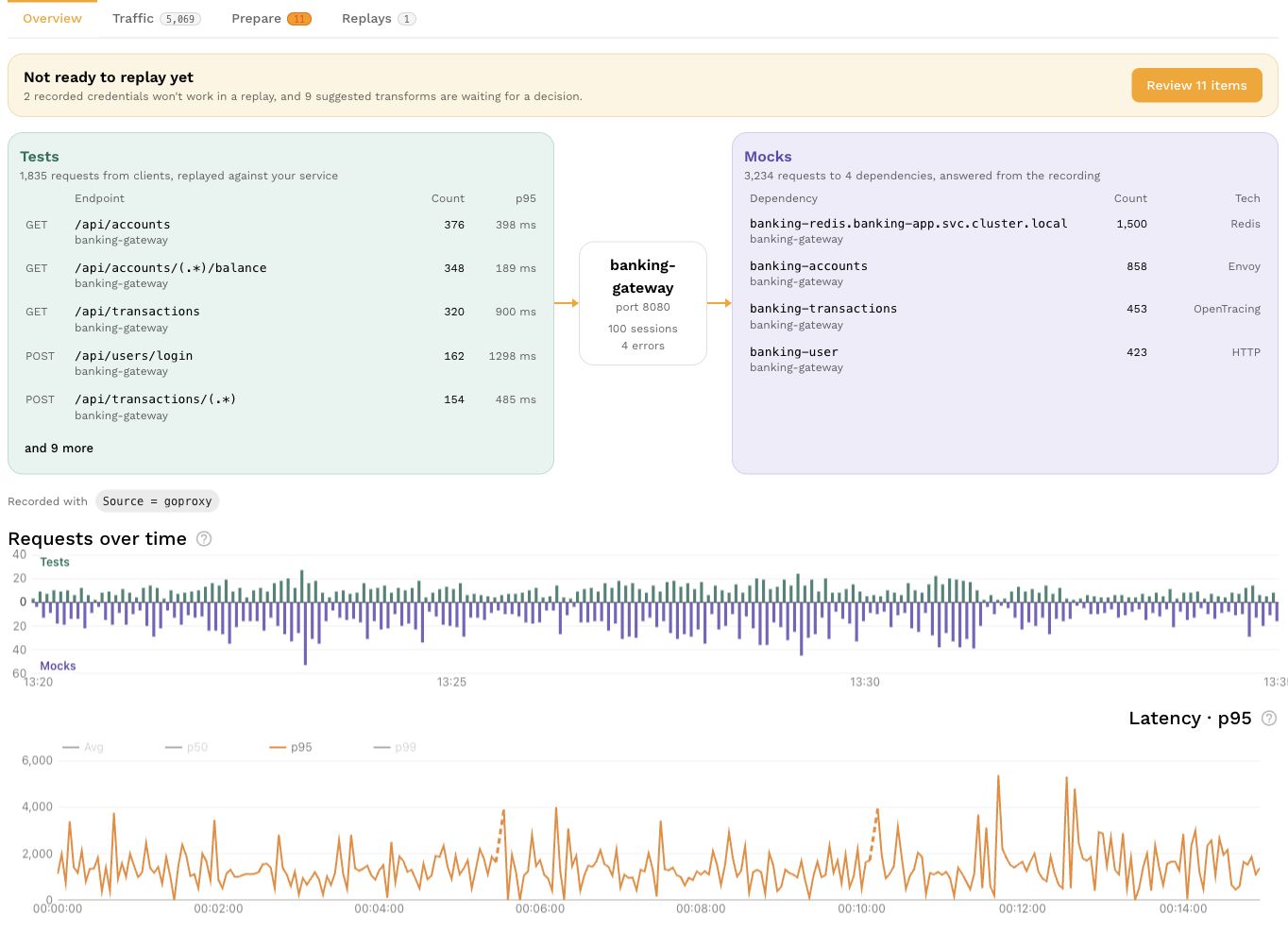
[Open screenshot full size](https://docs.speedscale.com/assets/images/snapshot-overview-a5033e515505a38e2023d0c4c29718b9.jpg)
Open the **Traffic** tab to inspect the requests before replay.
## Replay
HAR-generated cloud snapshots can be replayed from the snapshot page. Set **Custom URL** to the service under test because an imported HAR does not have a discovered cluster destination.
For the cloud workflow, see the full [replay guide](https://docs.speedscale.com/guides/replay/). For local commands, run `proxymock import har --help` and `proxymock replay --help`.